 Passkey & Sign-In Popup BlockerFree, for Chrome
Sign-in pop‑ups, kept out.
Websites keep asking you to use a passkey, sign in with Google or let Shop Pay text you a code. This hangs a Do Not Disturb sign on every site and says no for you, so you can type your password and get on.
In review at the Chrome Web Store
No account, nothing collected.
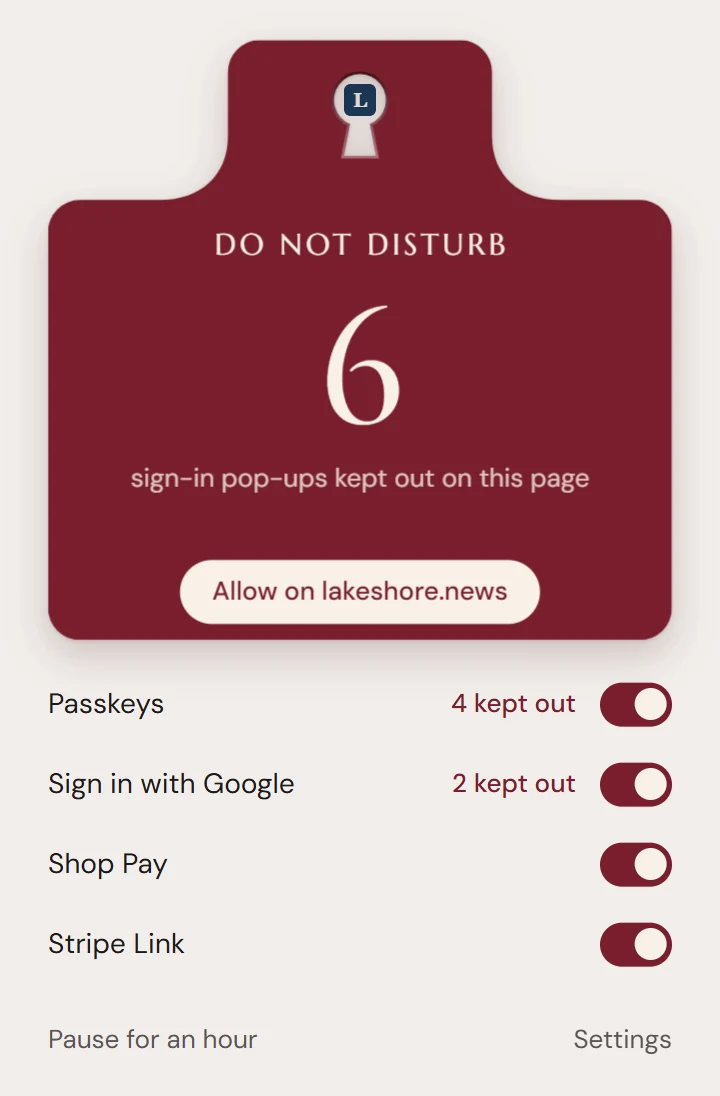
Do not disturb
6
sign-in pop-ups kept out on this page
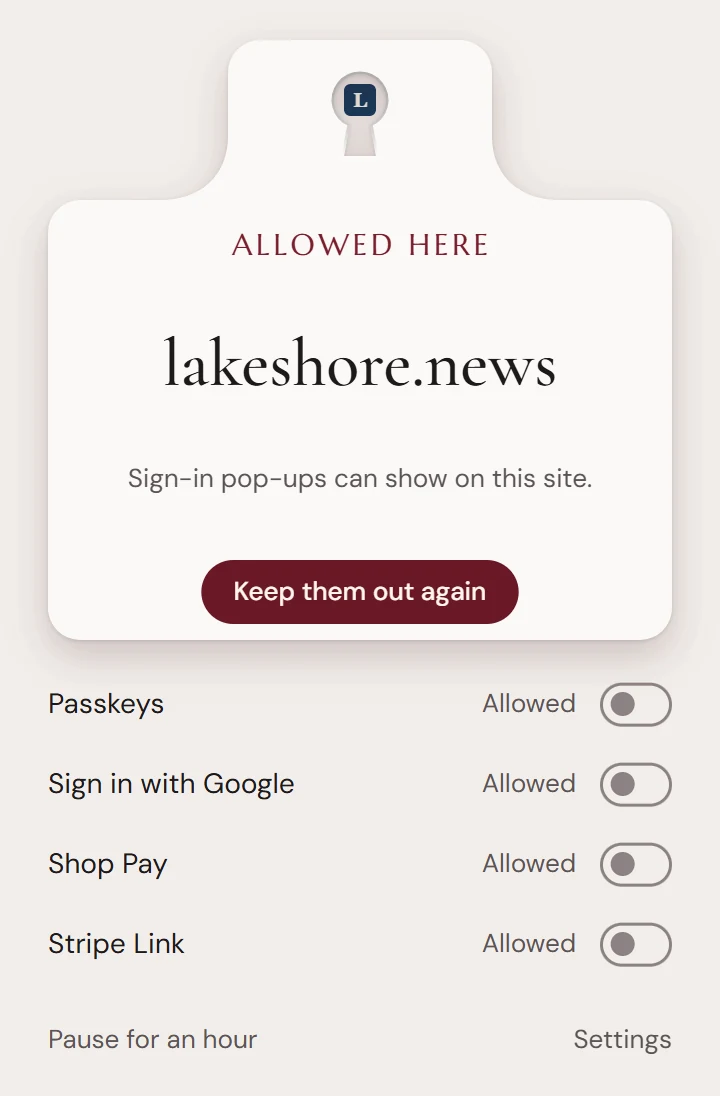
Allowed here
lakeshore.news
Sign-in pop-ups can show on this site.
What it keeps out
Each one has its own switch, on from the start. Turn one off to let it back in everywhere, or allow a site to let them all in there.
Passkeys
The Windows Hello, Mac or phone QR window asking to use or create a passkey, and the passkey suggestions under a login field.
Still works: The site shows its password form. A security key, like a YubiKey, still works for signing in and for adding a new one.
Sign in with Google
Chrome’s “Sign in with google.com” window and the One Tap box in the corner of sites like LinkedIn, Pinterest and news sites.
Still works: A Sign in with Google button you click yourself.
Shop Pay
The Shop Pay sign-in that texts you a code when you type your email at a Shopify checkout.
Still works: The card form, and paying.
Stripe Link
“Autofill with Link” at Stripe checkouts, which texts you a code too.
Still works: The card fields.
Tabs other Chrome extensions open
Off until you turn it on. Then the welcome, “what’s new” and “rate us” tabs your other extensions open on their own close as they open.
Still works: any page you open yourself. Anything it closes is listed in settings to reopen.
Eighteen seconds of quiet
One click on the icon
The panel is about the site you’re on: how many prompts it kept out, a switch for each, and a pause for an hour. The toolbar icon turns cream wherever prompts are allowed.
Questions
- What does it cost?
- Nothing. There is no paid version, no account and no ads.
- Why does Chrome say it can “read and change all your data”?
- Passkey and Google prompts can appear on any site, so the extension runs on every page to answer them with “not allowed”. It doesn’t read your pages, what you type, passwords or history, and it has no server to send anything to.
- What does it keep?
- Your switches and allowed sites, in Chrome’s own storage. Nothing leaves your browser. See the privacy policy.
- I want a passkey on one site.
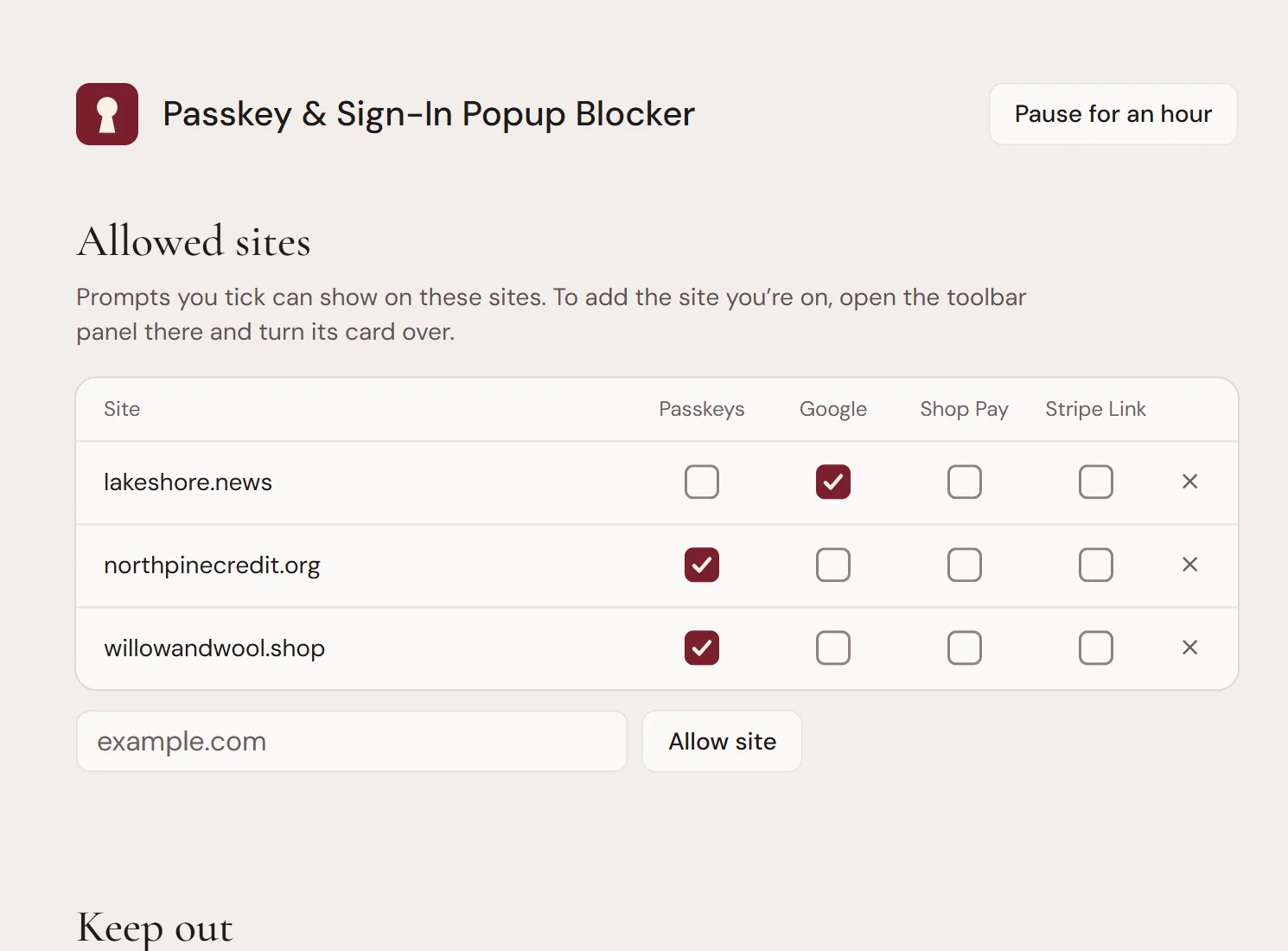
- Open the panel on that site and turn the card over. Every prompt is let in there, and only there. Or turn off just the one prompt in the list under the card.
- I use a security key.
- It keeps working. The extension only stops passkeys that live in your computer or phone.
- Will it break a checkout?
- No. It stops the sign-in that texts you a code; the card form is never touched. If a store still won’t take your order, allow that store from the panel.
- What about the tab switch?
- Off unless you turn it on. Then it closes the welcome, “what’s new” and “rate us” tabs your other extensions open on their own. A page you open yourself stays open, and anything it closes can be reopened from settings.
- Does it pop up anything of its own?
- No. No welcome tab, no notifications, no “rate us”.
Something got through, or a site broke? Email support@oakandlever.com with the site’s address.
Hang the sign.
Free for Chrome on Windows, Mac, Linux and ChromeOS.
In review at the Chrome Web Store